Install the MySQL Server on windows
MySQL Installer provides an easy to use, wizard-based installation of your MySQL software
MySQL installation
- Step-1 Download MySQL for window 32 or 64 according to your system
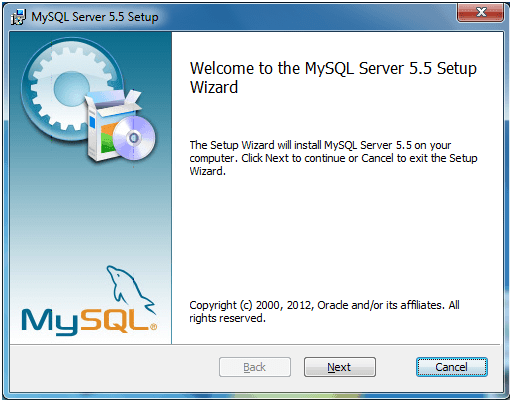
- Step-2 Click next to install MySQL server
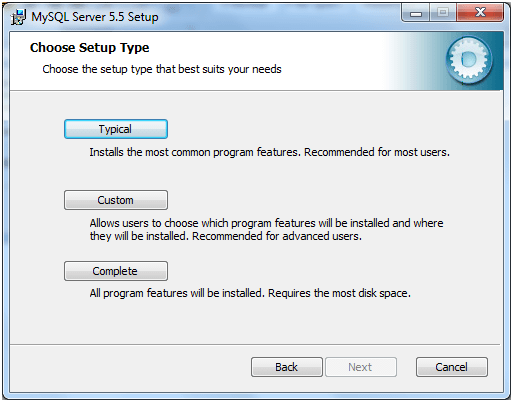
- Step-3 Choose the user type which you want
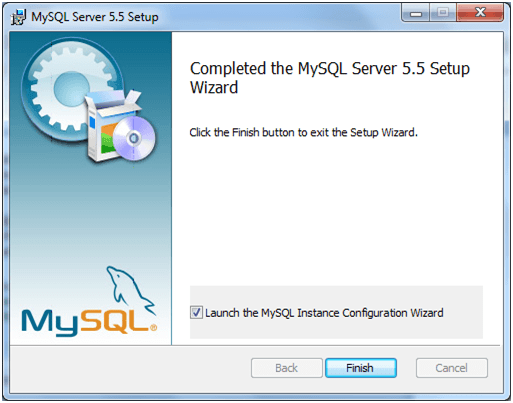
- Step-4 Finish the the mysql server setup
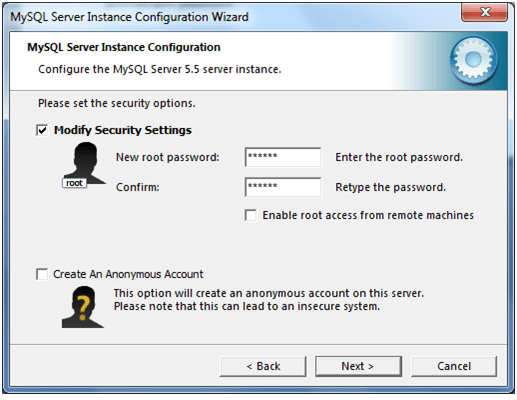
- Step-5 Open the MySQL congiguration wizard
- Step-6 Set the new password
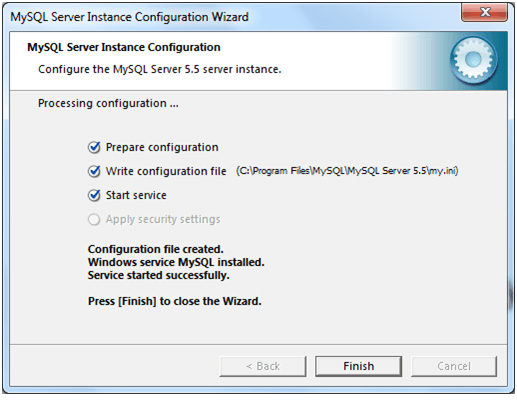
- Step-7 Finish the configuration

Start MySQL Database server from command line on windows
Set Environment variable of MySQL
-
Before start the MySQL Server, you should set the path for MySQL Server. To set the path of MySQL Server, you need to follow these steps:
- Right click on Computer icon and select properties.
- Click on the Advance system settings then appear the system properties tab.
- Choose the environment variable button.
- Under the environment variables, select path then click on edit button .Then Edit System Variable dialogue should appear.
- Separate already existing path by semicolon (;) and enter the complete path of MySQL Server
(for example, C:\Program Files\MySQL\MySQL Server 5.5\bin) then click ok.
Start MySQL Server
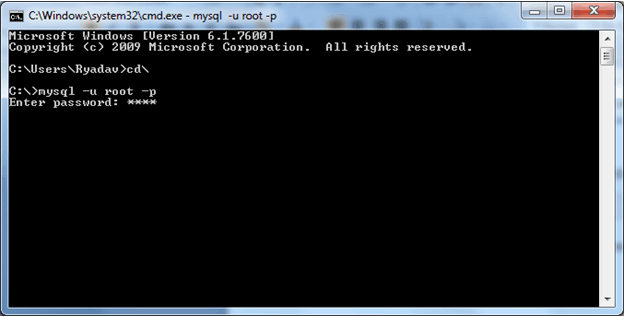
- To start MySQL Server from command line, use this command
C:\> mysql -u root -p
-u represents user root -p represents password
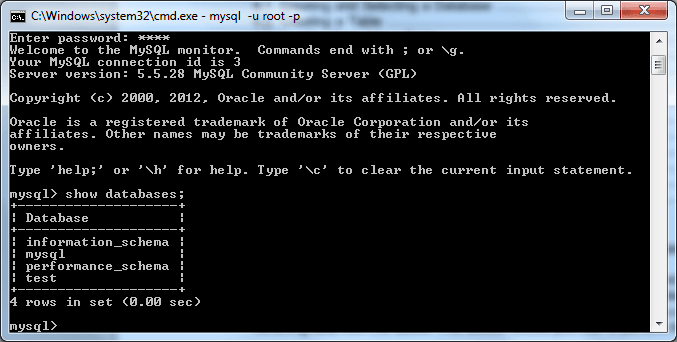
- Enter your MySQL password, if your password is correct, now your MySQL Server is ready to use.