
Jbutton
Package :
Class:
Note : JButton class can be used to add interactive buttons to a container.
Javax.swing
Class:
javax.swing.Jbutton
Note : JButton class can be used to add interactive buttons to a container.
| Constructors | Description |
|---|---|
JButton()
|
This Constructor creates a blank JButton instance. |
JButton(String Text) |
This Constructor creates a JButton instance with the specified text. |
| Method | Description |
|---|---|
void addActionListener(ActionListener
Handler) |
This Method configures an event handler for the button. |
void setActionCommand (String ActionText)
|
This Method sets the text for the action event of the button. |
void setBackground(Color BackgroundColor) |
This Method sets the background color of the button. |
void setEnabled(boolean State)
|
This Methodenables or disables the button. |
void setFont(Font TextFont)
|
This Method sets the font for this component. |
void setForeground(Color TextColor)
|
This Method Sets the color of the text for the button. |
void setText(String Text)
|
This MethodSets the text for the button. |
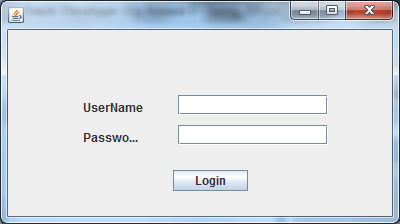
Example :
package client;

import java.awt.Dimension;
import java.awt.Rectangle;
import javax.swing.JButton;
import javax.swing.JFrame;
import javax.swing.JLabel;
import javax.swing.JPasswordField;
import javax.swing.JTextField;

public class Frame2 extends JFrame
{
    private JTextField jTextField1 = new JTextField();
    private JLabel jLabel1 = new JLabel();
    private JButton jButton1 = new JButton();
    private JLabel jLabel2 = new JLabel();
    private JPasswordField jPasswordField1 = new JPasswordField();
    public Frame2()
    {
        try
        {
            jbInit();
        }
        catch (Exception e)
        {
            e.printStackTrace();
        }
    }
    private void jbInit() throws Exception
    {
        this.getContentPane().setLayout( null );
        this.setSize( new Dimension(400, 300) );
        jTextField1.setBounds(new Rectangle(170, 65, 150, 20));
        jLabel1.setText("UserName");
        jLabel1.setBounds(new Rectangle(75, 70, 75, 15));
        jButton1.setText("Login");
        jButton1.setBounds(new Rectangle(165, 140, 75, 21));
        jLabel2.setText("Password");
        jLabel2.setBounds(new Rectangle(75, 100, 55, 15));
        jPasswordField1.setBounds(new Rectangle(170, 95, 150, 20));
        this.getContentPane().add(jPasswordField1, null);
        this.getContentPane().add(jLabel2, null);
        this.getContentPane().add(jButton1, null);
        this.getContentPane().add(jLabel1, null);
        this.getContentPane().add(jTextField1, null);
    }
    public static void main(String[] args)
    {
        Frame2 ff=new Frame2();
        ff.setVisible(true);
    }
}
Output :
JPanel
Package :
Class:
Note : JPanel is a container which is used to hold the widgets of swing.
Javax.swing
Class:
javax.swing.JPanel
Note : JPanel is a container which is used to hold the widgets of swing.
| Constructors | Description |
|---|---|
JPanel()
|
This Constructor constructs a new blank JPanel. |
| Method | Description |
|---|---|
void paint(Graphics g) |
This Method overrides the paint method of JPanel. |
void repaint()
|
This Method repaints this component, and causes a call to the paint method. |
void setLayout (LayoutManager Manager) |
This Method sets the layout manager for the panel. |
Component add (Component Item)
|
This Method appends the specified component to the end of this container. |
void add(Component Item, Object Constraints)
|
This Method appends the specified component with the specified constraints. |
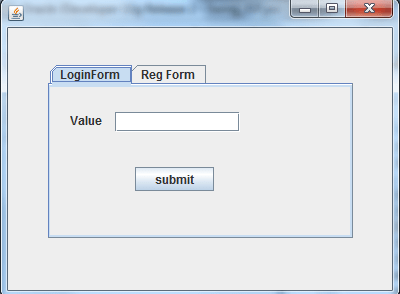
Example :
package project1;

import java.awt.Dimension;
import java.awt.Rectangle;
import javax.swing.JButton;
import javax.swing.JFrame;
import javax.swing.JLabel;
import javax.swing.JPanel;
import javax.swing.JTabbedPane;
import javax.swing.JTextField;

public class Frame1 extends JFrame
{
    private JTabbedPane jTabbedPane1 = new JTabbedPane();
    private JPanel panel1 = new JPanel();
    private JPanel panel2 = new JPanel();
    private JButton jButton1 = new JButton();
    private JLabel jLabel1 = new JLabel();
    private JTextField jTextField1 = new JTextField();
    private JButton jButton2 = new JButton();
    public Frame1()
    {
        try
        {
            jbInit();
        }
        catch (Exception e)
        {
            e.printStackTrace();
        }
    }
    private void jbInit() throws Exception
    {
        this.getContentPane().setLayout( null );
        panel1.setLayout(null);
        panel2.setLayout(null);
        this.setSize( new Dimension(400, 300) );
        jTabbedPane1.setBounds(new Rectangle(40, 35, 305, 175));
        jButton1.setText("submit");
        //jTabbedPane1.addTab("jButton1", jButton1);
        jLabel1.setText("Value");
        jLabel1.setBounds(new Rectangle(20, 25, 41, 16));
        jTextField1.setBounds(new Rectangle(65, 25, 125, 20));
        jButton2.setText("submit");
        jButton2.setBounds(new Rectangle(85, 80, 79, 24));
        panel1.add(jButton2, null);
        panel1.add(jTextField1, null);
        panel1.add(jLabel1, null);
        jTabbedPane1.addTab("LoginForm", panel1);
        jTabbedPane1.addTab("Reg Form", panel2);
        this.getContentPane().add(jTabbedPane1, null);
    }
    public static void main(String[] args)
    {
        Frame1 obj = new Frame1();
        obj.setVisible(true);
    }
}
JSlider
Package :
Class:
Note :
Javax.swing
Class:
javax.swing.JSlider
Note :
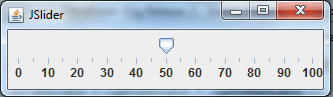
- Swing sliders can have major and minor tick marks.
- JSlider gives user graphically select a value by sliding a button within a bounded interval.
| Constructors | Description |
|---|---|
JSlider()
|
This Constructor creates a JSlider instance with a range of 0-100, an initial value of 0, and horizontal orientation. |
JSlider(int Orientation)
|
This Constructor creates a JSlider instance with a range of 0-100, an initial value of 0, and the specified orientation. |
JSlider(int Min, int Max)
|
This Constructor creates a JSlider instance with a range of Min-Max, an initial value of (Min + Max)/2, and horizontal orientation |
JSlider(int Orientation, int Min, int Max)
|
This Constructor creates a JSlider instance with a range of Min-Max, an initial value of (Min + Max)/2, and the specified orientation. |
JSlider (int Orientation, int Min, int Max,
|
This Constructor creates a JSlider instance with a range of Min-Max, an initial value as specified, and the specified orientation. |
| Method | Description |
|---|---|
int getValue() |
This Method returns the value of the slider setting. |
void setBackground(Color BackgroundColor)
|
This Method sets the background color of the Slider. |
void setInverted(boolean inverted) |
This Method reverses the sense of Min and Max if true. |
void setValue (int value)
|
This Method sets the current value of the slider. |
void setMaximum(int Max) |
This Method sets the maximum value of the slider. |
void setMinimum (int min) |
This Method sets the minimum value of the slider. |
void setMajorTickSpacing(int delta) |
This Method set the spacing of the major tick marks. |
void setMinorTickSpacing (int Delta) |
This Method set the spacing of the minor tick marks. |
void addChangeListener(ChangeListener
|
This Method configures an event handler for the Slider. |
Example :
import javax.swing.JFrame;
import javax.swing.JPanel;
import javax.swing.JProgressBar;
import javax.swing.SwingUtilities;

public class Frame4 extends JPanel
{
	JProgressBar progress;
	static final int MY_MIN = 0;
	static final int MY_MAX = 100;
	public Frame4()
	{
	    progress = new JProgressBar();
	    progress.setMinimum(MY_MIN);
	    progress.setMaximum(MY_MAX);
	    add(progress);
	}
	public void updateBar(int newValue)
	{
		progress.setValue(newValue);
	}
	public static void main(String args[])
	{
		final Frame4 it = new Frame4();
		JFrame frame = new JFrame("Progress Bar");
		frame.setDefaultCloseOperation(JFrame.EXIT_ON_CLOSE);
		frame.setContentPane(it);
		frame.pack();
		frame.setVisible(true);
		for (int i = MY_MIN; i <= MY_MAX; i++)
		{
			final int percent = i;
			try
			{
				SwingUtilities.invokeLater(new Runnable()
				{
					public void run()
					{
						it.updateBar(percent);
					}
				});
				java.lang.Thread.sleep(100);
			}
			catch (InterruptedException e)
			{
				;
			}
		}
	}
}
Output :